
Public Rooms
When you want to join larger public conversations, you have three major options at hand:
- Joining a specific room from its address/alias or from a
matrix.tolink - Browsing a public directory to find rooms of interest
- Joining a room that was listed in a Space
Some clients also allow applying specific settings to public rooms, such as hiding images by default.
Joining a specific room
Someone might have shared a link that starts with matrix.to with you, or you
might have stumbled upon it on a website. Those links will bring you to the
public conversation you tried to join after asking you what client you want to
use.
Clicking a matrix.to link you will open a new tab in your browser, showing you
a UI that looks like the following.
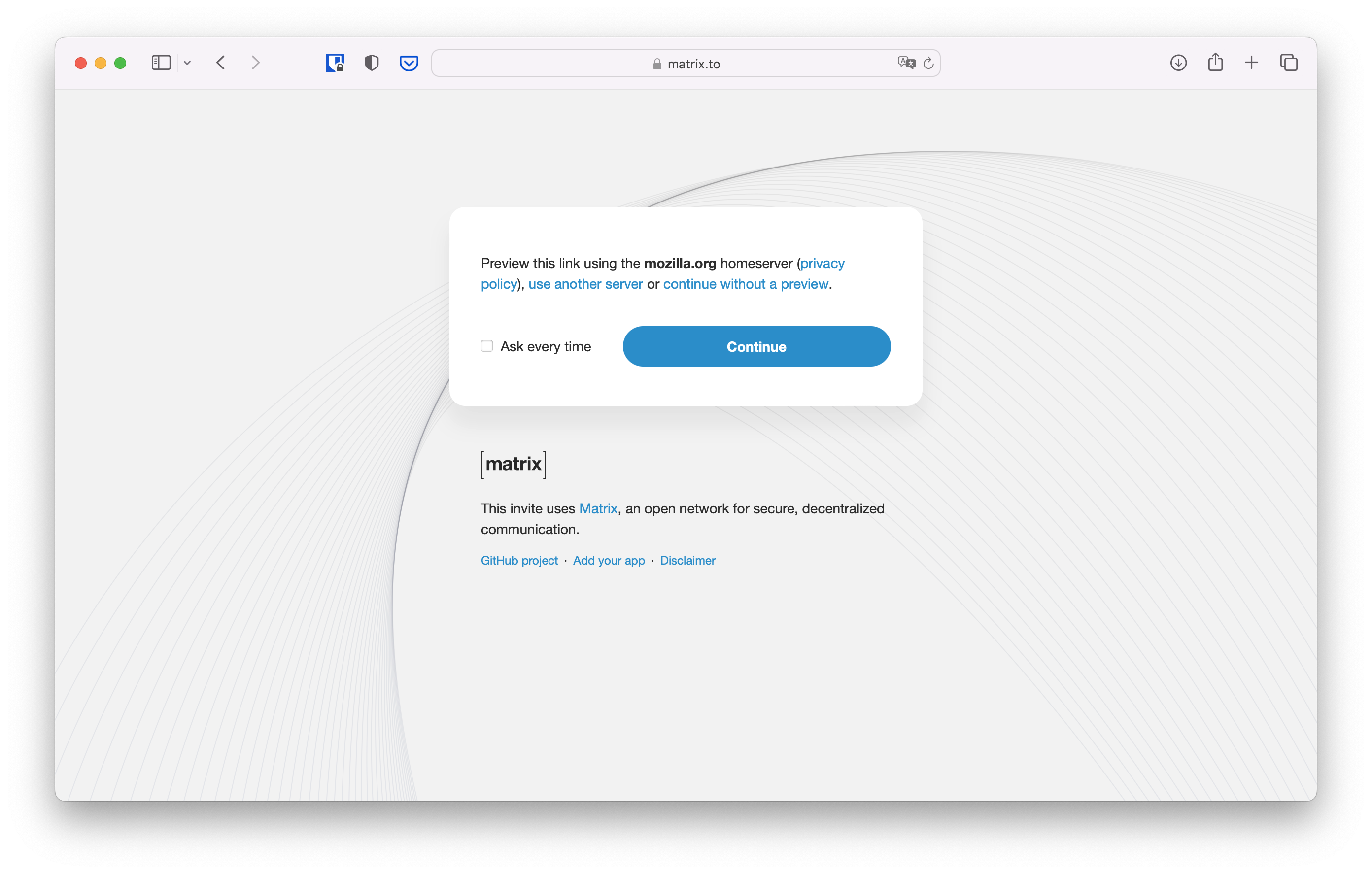
Click on accept, and you will be redirected to a preview of the room you're
trying to join, containing its name, address (on the format
#room-name:example.com), and number of people currently in the room. Below
this preview is a list of clients you can use to join the room.
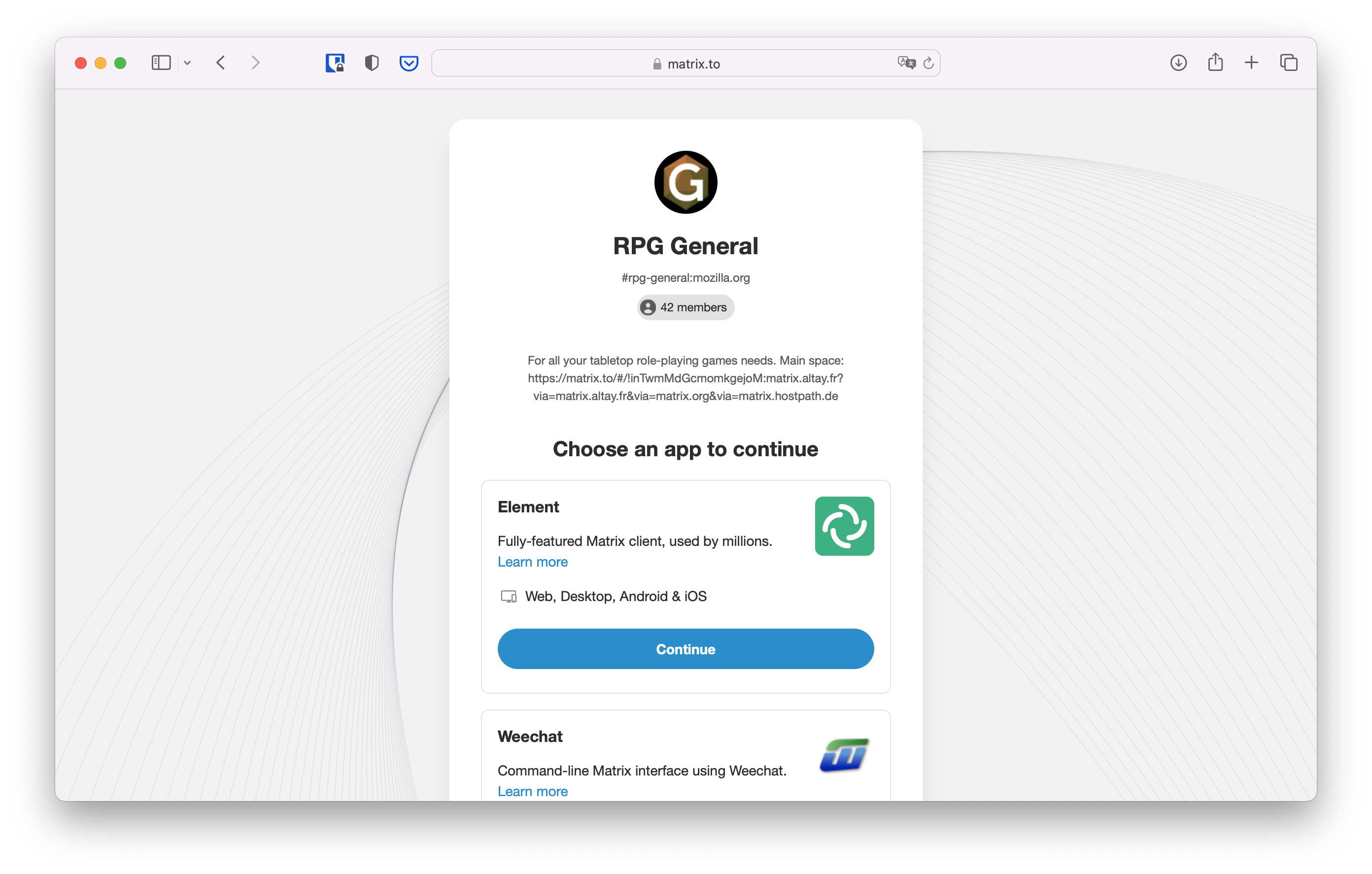
Since this documentation started with Element, let's carry on with it. You will be able to seamlessly change to another client when you're more used to Matrix.
Click on "Continue" below Element. If you have installed Element Desktop, your browser may ask you if you want to allow this page to open Element. Click on Allow. If you haven't installed Element Desktop, you can either click on "Download" to get it, or "Continue in your browser" to carry on with the web app.
Depending on the privacy settings set by the administrators of the room, you may or may not be able to see a preview of the conversation.
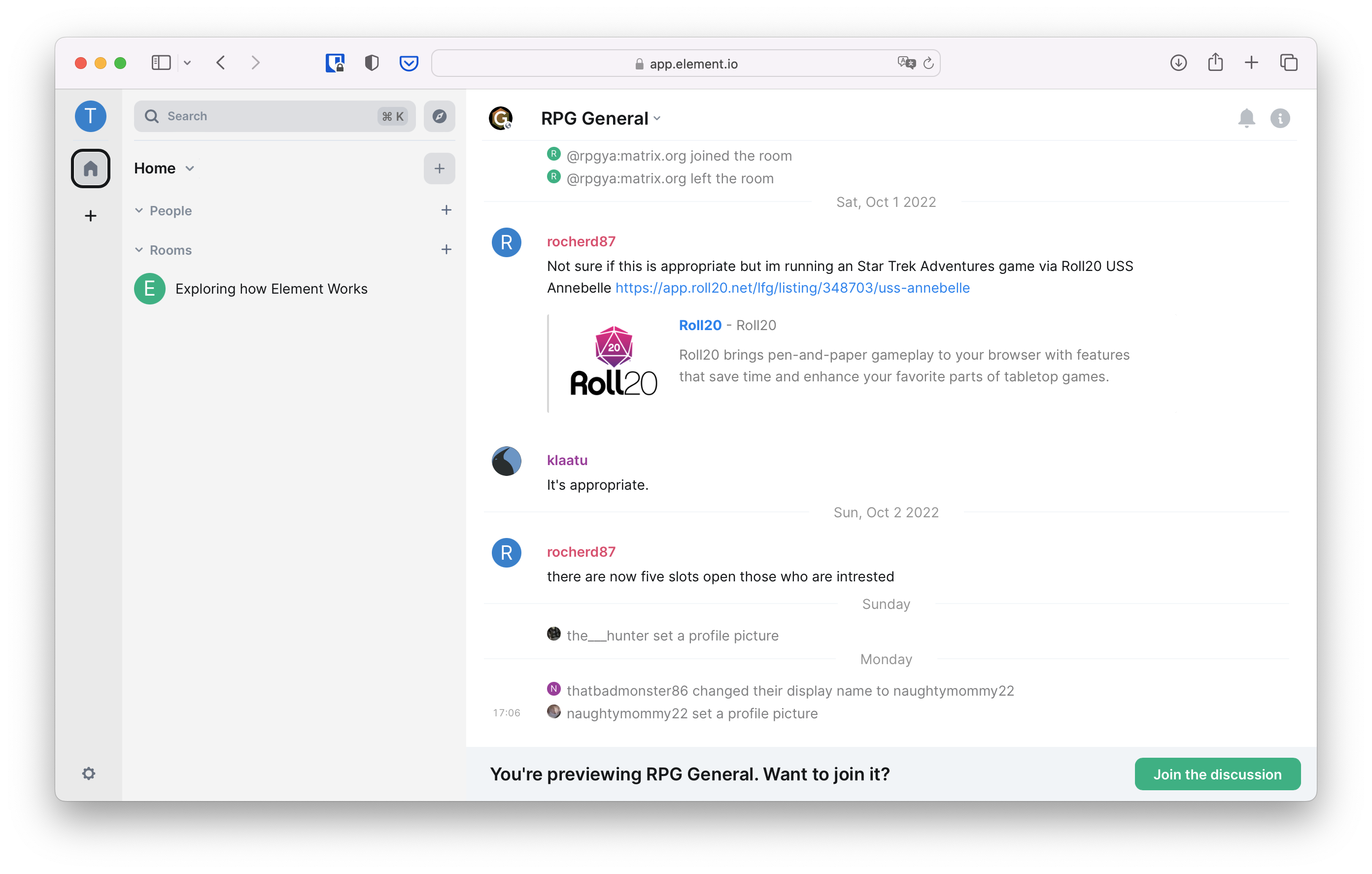
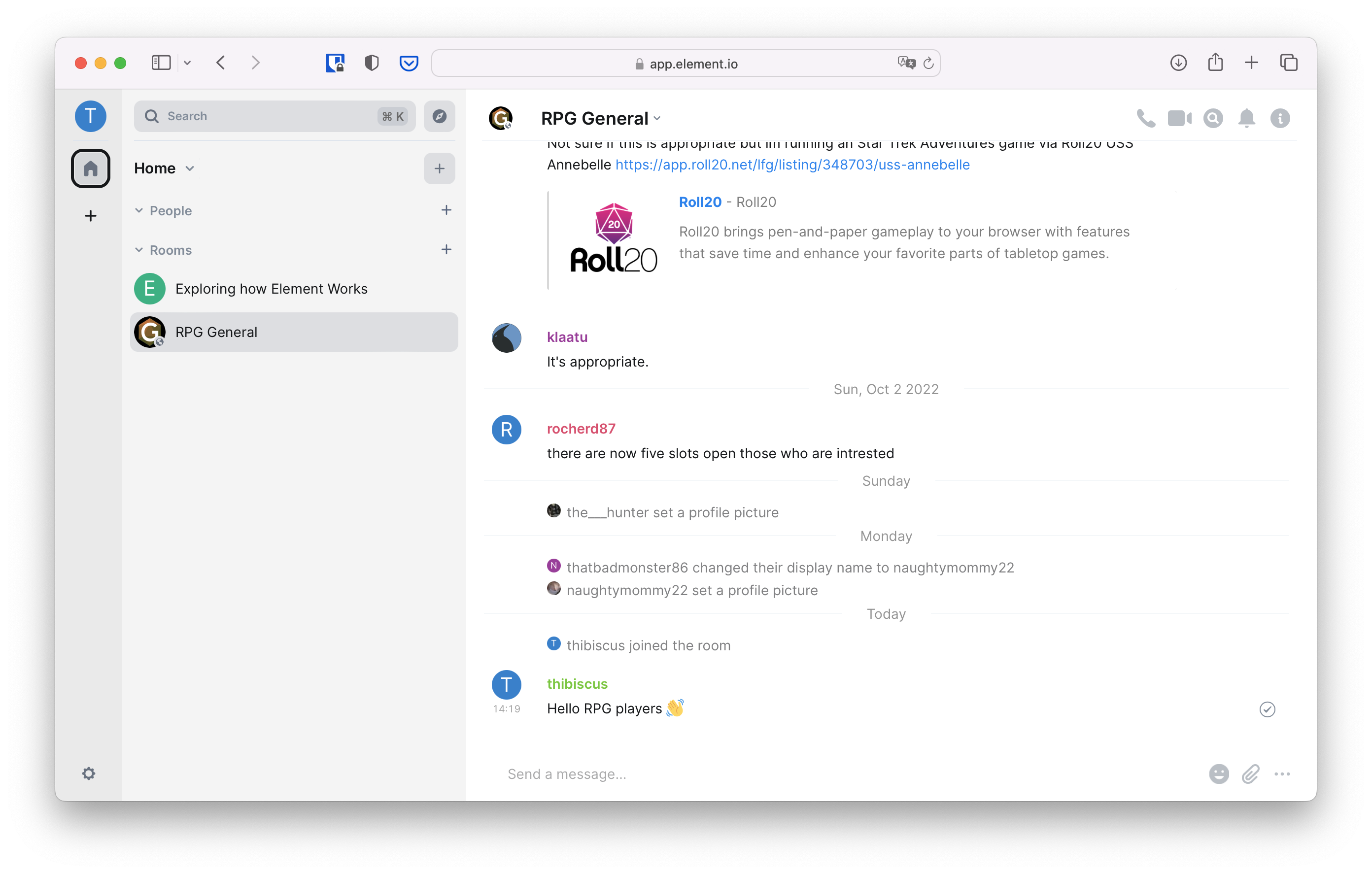
Click on "Join the discussion": you can now participate in the room!
Browsing the public directory
Joining a specific room is handy when you know exactly what you want to discuss or where, but sometimes you just want to find a casual place to talk of things of interest with people on the Internet.
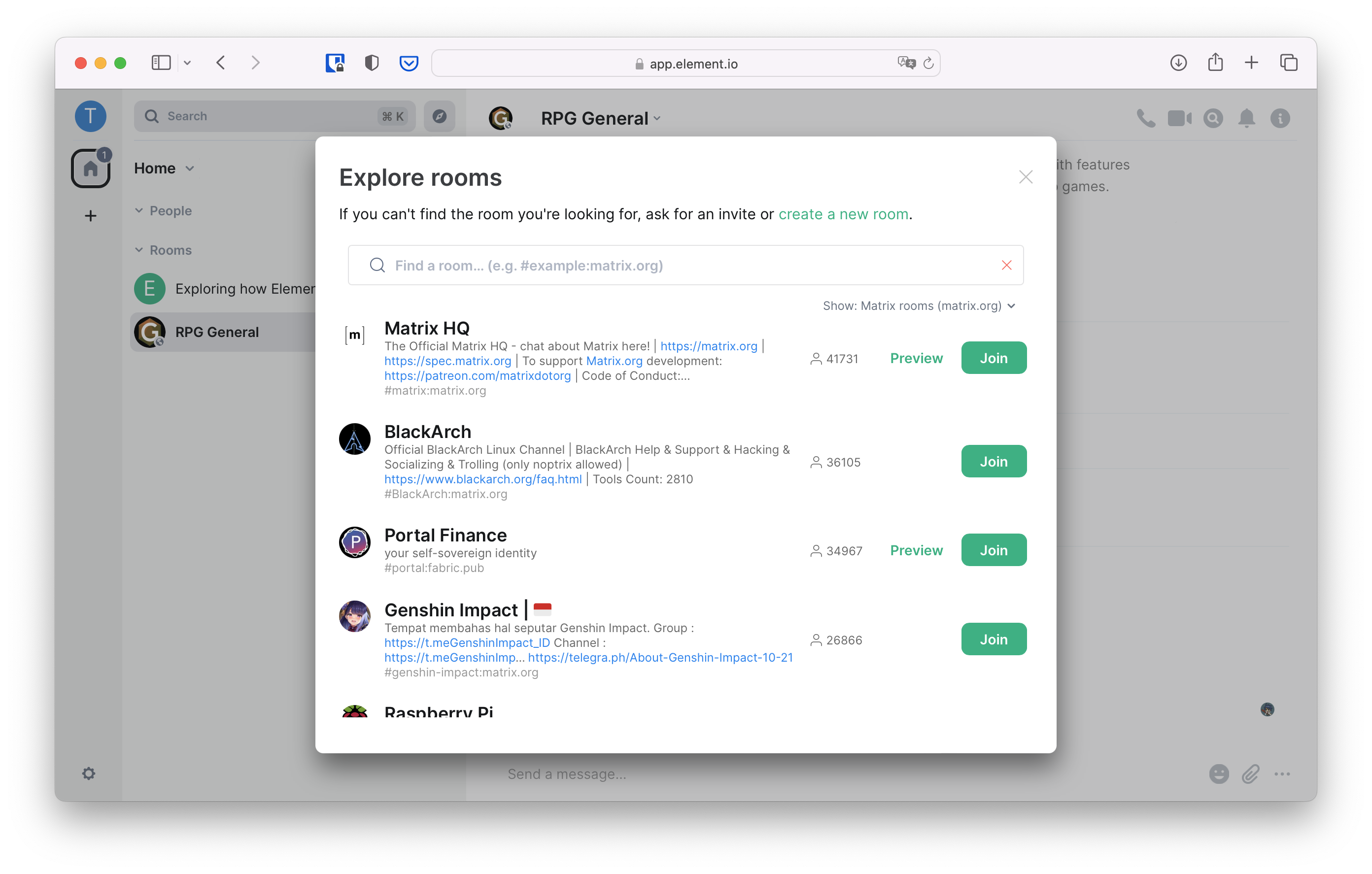
Matrix has a built-in directory where people can publish their public rooms for others to find them. The directory only shows rooms published on a single provider at once. If you have created an account on matrix.org, it's going to show you only rooms published on matrix.org's directory.
To access the directory in Element Web, click on the + in the left bar,
and on "Join public room".
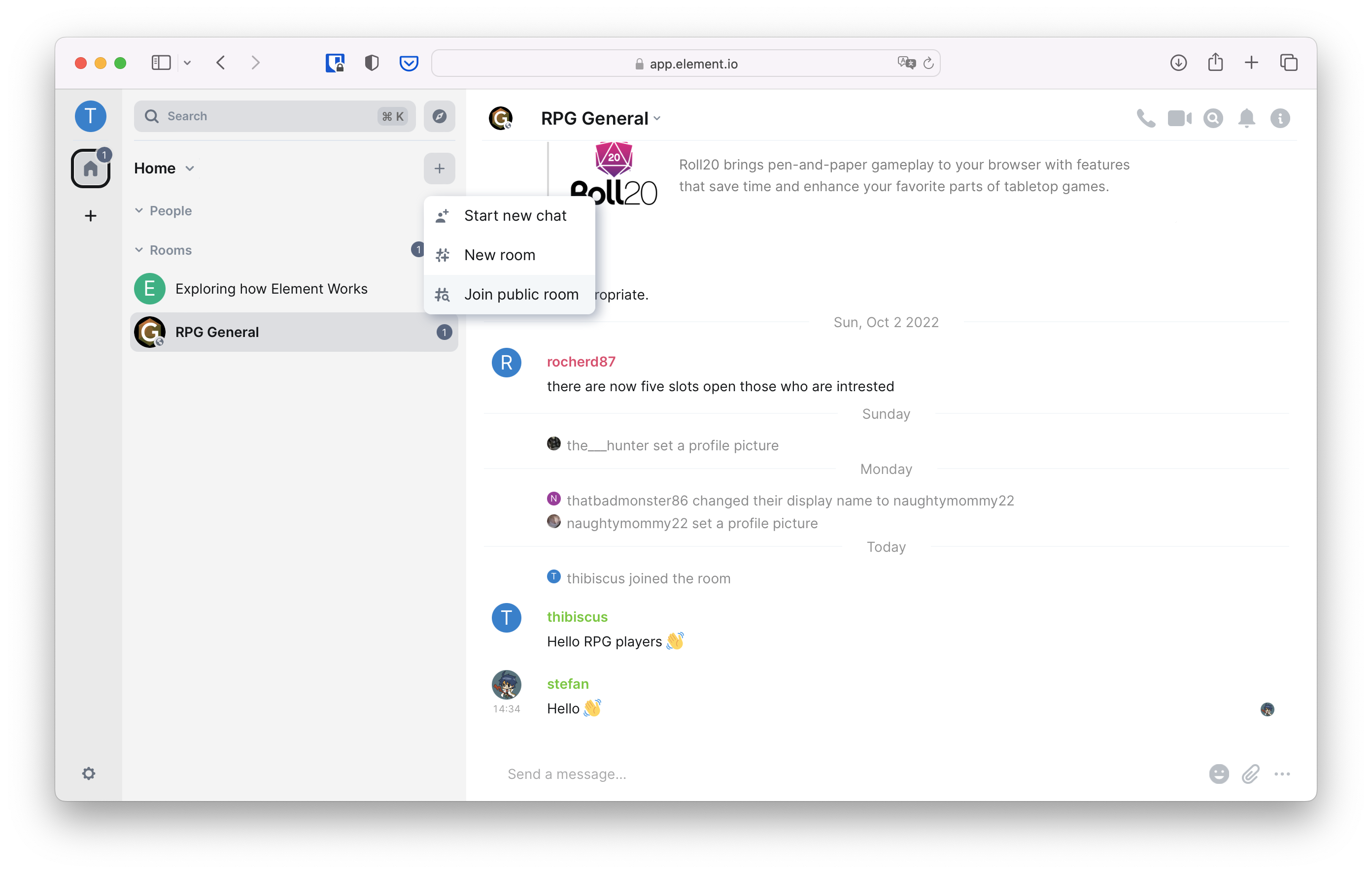
It will open a list of all the public rooms published in the directory of your provider.
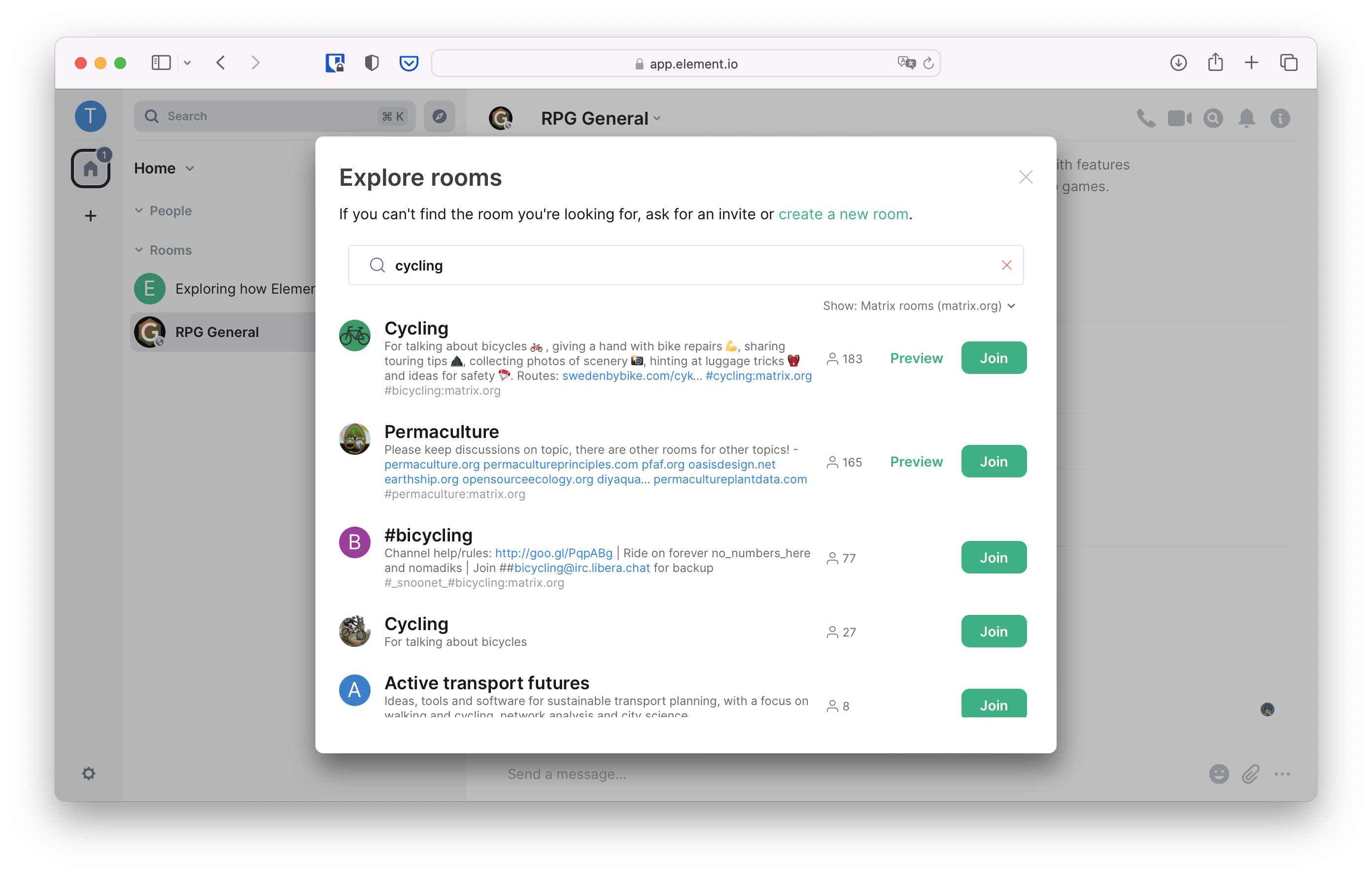
The directory can be very large sometimes, and the rooms displayed at the top of the list may not be of interest to you. You can type a center of interest to see if someone has created a room for it already.
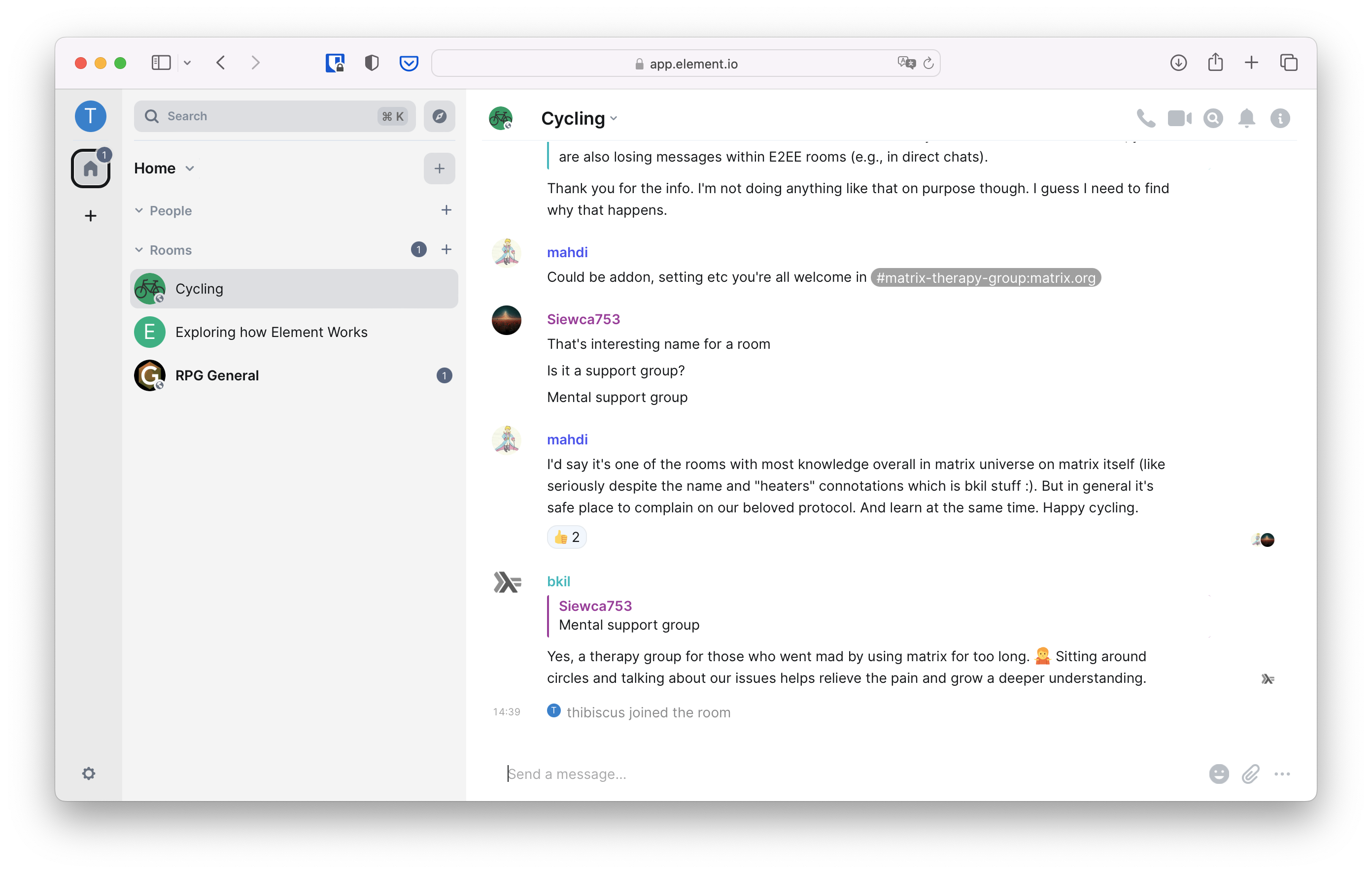
You can click "Join" to join the room, and voilà, you're in!
Spaces
A Space is a way to group several rooms together. If you are familiar with other platforms, Matrix Spaces are similar to Slack Workspaces or Discord Servers. It looks like the following.
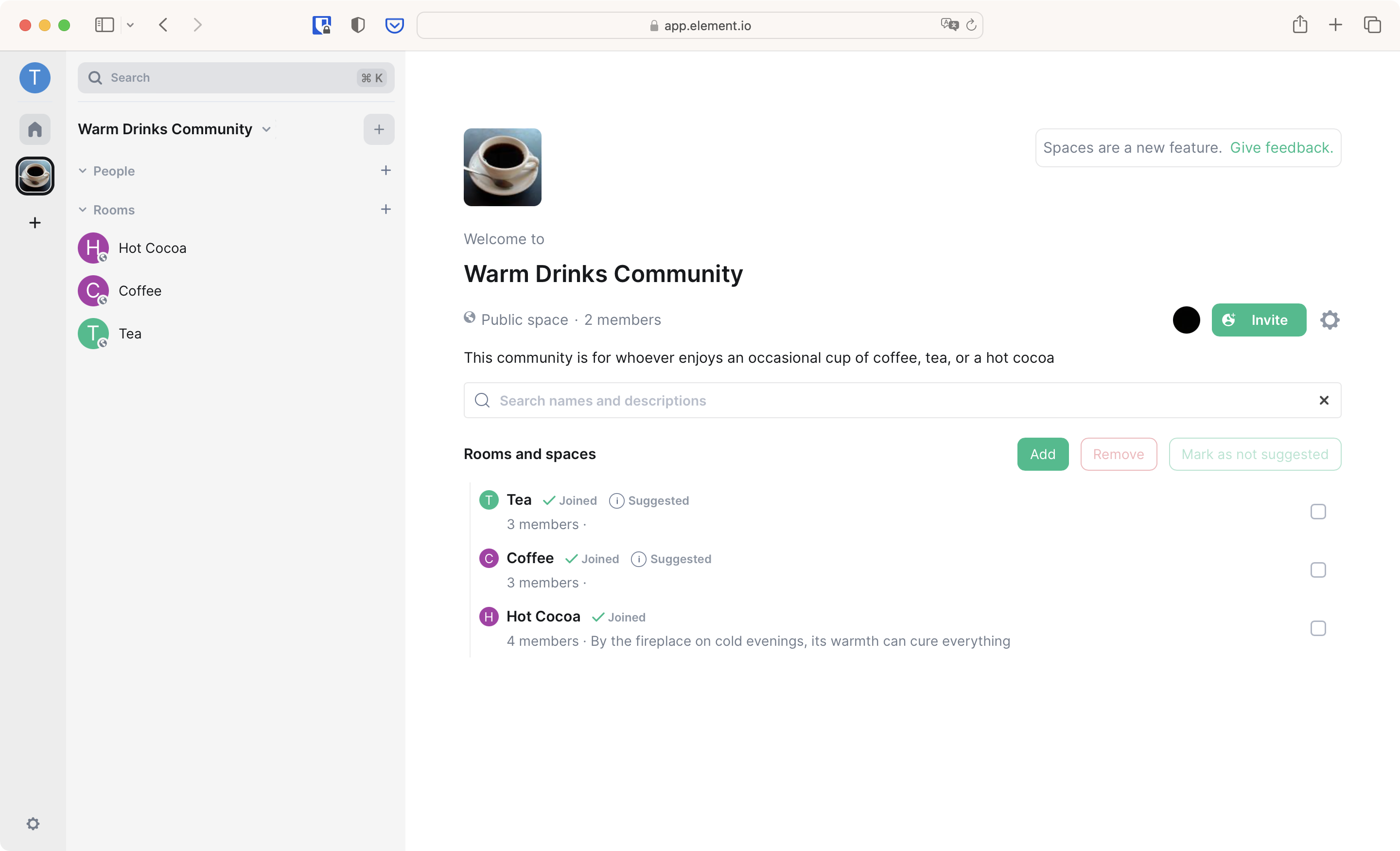
To join a Space, you need to either know its address, or click on a matrix.to link to that space someone would have shared with you. For example, to join the Space of the Matrix Community, you can click on https://matrix.to/#/#community:matrix.org
The process to join a Space is the same as for Joining a specific room.
Once you have joined a Space, clicking on its icon on the leftmost bar will bring you to the index view of the space: you will see all the rooms contained in this space, and you will be able to join them by clicking on "Join".
Note that when you join a Space, you are not automatically joining all the rooms inside it.
Here are a few Spaces you might be interested in:
- Matrix Community https://matrix.to/#/#community:matrix.org
- Science https://matrix.to/#/#science-space:matrix.org
- Libre Gaming https://matrix.to/#/#libregaming-games:tchncs.de
- Retro Computing & Gaming https://matrix.to/#/#retro:nil.im
- Mathematics https://matrix.to/#/#mathematics-on:matrix.org
Hiding images by default
In public rooms, sometimes people post inappropriate content, including images you don't want to see. Hopefully a room's moderators will tidy things up quite quickly, but many people prefer to make images in public rooms hidden, allowing them to show individual images when they are ready.
In Fractal
In Fractal, images in public rooms are hidden by default. You can check and adjust this in Account Settings.

Choose Safety, and find "Media Previews". Make sure "Show only in private rooms" is selected.

Now images will be hidden by default. You can make them visible by clicking on "Click to show preview".

You can re-hide them by choosing the "eye" icon in the corner of the image.

In Element X
In Element X, you can hide images in public rooms in Settings, by tapping on your avatar.

Choose Advanced Settings.

Under "Show media in timeline" choose "In private rooms".

Now images will be hidden by default. You can make them visible by clicking on "Show".

To hide an image after it has been shown, go back to the room list and re-enter the room.
In Element Web
In Element Web, you can hide images in public rooms in Settings.

Choose Preferences, and scroll down to Moderation and safety. Click "In private rooms" under "Show media in timeline".

Now images will be hidden by default. You can make them visible by clicking on "Show image".

You can re-hide them by choosing the "eye" icon when you hover over the image.
